Use Copy Paste Manager faster
Start with the popup shortcut, then search, paste, pin, queue, and organize clips from one place.
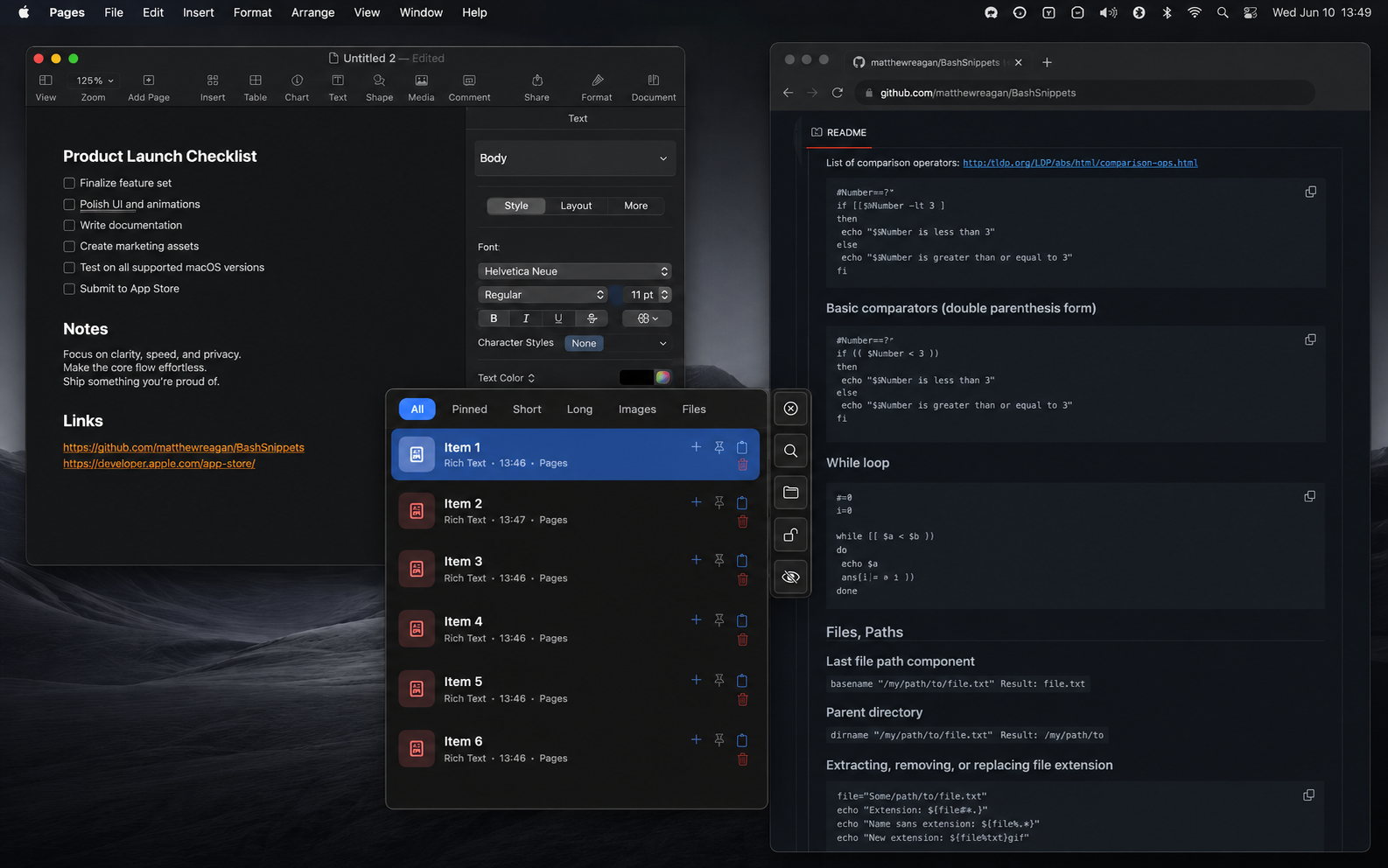
Search
Find the clip you need without scrolling through your whole history. Search is instant and stays on your Mac.
Press ⌘⌥V to open history, then press ⌘F and start typing. Results update immediately, so you can search by copied text, source app, or content type before you paste. Feature details →
Keyboard shortcuts
These are the default shortcuts. You can change them in Preferences → Hotkeys.
| Shortcut | Action |
|---|---|
| ⌘F | Open search and put the cursor in the search field. |
| ↑ | Move to the previous result. From the first result, move back into the search field. |
| ↓ | Move to the next result. From the search field, jump to the first matching item. |
| Return | Paste the selected result. If the search field is focused, Return first moves to the top result. |
| Escape | Close history without pasting. |
| ⌘P | Pin or unpin the selected result. |
| Space | Select the current item for bulk actions or a paste queue. |
| Delete / Backspace | Remove the selected result from history. This does not run while you are typing. |
| Page Up / Page Down | Jump to the top or bottom of the results. |
Mouse & UI controls
- Search field — Appears at the top of the popup and filters history as you type.
- Clear (×) — Clears the query and brings back the full list.
- Search button — Shows or hides search from the popup toolbar.
- Click an item — Pastes that item and closes history.
- ⌘-click — Multi-select items without pasting.
- No results — Use Clear search to return to the full list.
What search looks at
Search is simple by design: type part of what you remember and the list narrows down.
- Copied content — Text shown in the clip preview
- Content type — Text, images, files, links, and other saved types
- Source app — The app the clip came from
Search respects the view you are already in. If you are inside a collection, the Images tab, or the Pinned tab, search only looks inside that filtered view.
Preferences
- Always Show Search — Keep the search field visible every time history opens. Turn it off if you prefer a cleaner popup and use ⌘F when needed.
- Custom search shortcut — Remap search if ⌘F conflicts with another app.
Good to know
- Results update as you type.
- Search clears when you close history, so the next open starts clean.
- Search is local. Queries are not uploaded, logged, or synced.
- Advanced search operators are not needed for the normal workflow; use plain words.
Related shortcuts
- ⌘⌥V — Open clipboard history (default)
- ⌘↩ — Advanced Paste for the selected item (default)
- ⌘⌃V — Sequential paste / paste queue (default)
Advanced Paste
Change a clip before you paste it. Turn rich text into plain text, clean formatting, convert images, or paste file paths without opening another utility.
How to use it
- Select the clip you want to paste.
- Press ⌘↩ to open Advanced Paste.
- Choose the output you need, then press Return to paste it.
Default shortcuts
| Shortcut | Action |
|---|---|
| ⌘↩ | Open Advanced Paste for the selected item. |
| ↑ / ↓ | Move between conversion options in the dialog. |
| Return | Apply the highlighted conversion and paste. |
| Escape | Close Advanced Paste without applying. |
Tips
- Use this when copied content brings too much formatting with it.
- The menu adapts to the selected clip, so image actions only appear for images and file actions only appear for files.
Always Visible Mode
Keep history open while you clean up, organize, or paste several clips.
How to use it
- Open Preferences.
- Turn on Always Visible mode.
- Close the popup manually when the session is finished.
Default shortcuts
| Shortcut | Action |
|---|---|
| ⌘E | Toggle auto-hide vs always-visible popup mode. |
Tips
- Useful when you are reviewing several clips instead of pasting one item quickly.
- Lower opacity if you want to keep your document visible behind the popup.
Usage Insights
See how you use the app without sending clipboard content anywhere.
How to use it
- Open the menu bar app menu.
- Open Usage Insights.
- Check which content types and workflows you use most.
Tips
- Insights stay on your Mac.
- Reset statistics whenever you want to start measuring from zero.
Appearance
Make the popup feel natural on your screen: dark or light, more transparent, pinned to an edge, or following your cursor.
How to use it
- Open Preferences → Appearance.
- Choose theme, opacity, position behavior, and control style.
- Reopen history and adjust again until it feels comfortable.
Tips
- Use a lower opacity if the popup covers work underneath.
- Edge-pinned placement is useful during longer organizing sessions.
Auto-Paste
Paste a saved clip directly into the app you are using.
How to use it
- Click where the text or file should go.
- Open clipboard history.
- Select a clip and press Return, or click the clip.
Default shortcuts
| Shortcut | Action |
|---|---|
| ⌘⌥V | Open or focus clipboard history. |
| Return | Paste the selected item and close history. |
| Click item | Paste that item with the mouse. |
Tips
- Requires macOS Accessibility permission.
- If nothing pastes, click the target field again and check Accessibility permission.
Auto-Categorize & Filters
Use quick filters when history gets busy. Jump straight to pinned clips, images, files, or a collection.
How to use it
- Open clipboard history.
- Click a tab such as All, Pinned, Images, or Files.
- Add search or a collection filter to narrow the list further.
Default shortcuts
| Shortcut | Action |
|---|---|
| ← | On All, open collections; on other tabs, switch to the previous tab. |
| → | Switch to the next category tab when auto-categorize is enabled. |
| ⌘F | Search within the current filtered view. |
Tips
- Filters use local history only; nothing is sent to a server.
- Use collections when type filters are not enough, for example per project or client.
Collections
Save related clips together so you can find them again later.
How to use it
- Open history and select a clip.
- Click the folder button or press +.
- Open the collection later to see only those clips.
Default shortcuts
| Shortcut | Action |
|---|---|
| ← | Open the collections sidebar from the main list. |
| + | Open Add to Collection for the selected item or multi-selected items. |
| ↑ / ↓ | Move between collections while the sidebar is focused. |
| Return | Apply the highlighted collection filter. |
Tips
- Good collection ideas: project notes, support replies, code snippets, links, templates, and launch assets.
- Pin clips you use constantly. Use collections when several clips belong together.
Content Converters
Do small conversion jobs from the clipboard popup instead of switching tools.
How to use it
- Select a clip that can be converted.
- Open Advanced Paste.
- Pick the output you need and paste the result.
Default shortcuts
| Shortcut | Action |
|---|---|
| ⌘↩ | Open Advanced Paste converters for the selected item. |
| ↑ / ↓ | Choose a converter. |
| Return | Apply the converter and paste the result. |
Tips
- Text converters handle case changes, formatting cleanup, escaping, Base64, URLs, and more.
- If an option is missing, that clip type does not support it.
Copy Target
Send everything you copy into one chosen app, useful when collecting research into Notes, Pages, Mail, or a document.
How to use it
- Open the app you want to collect into.
- Press ⌘⌃C to set it as the Copy Target, then copy from other apps as usual.
- Watch the target indicator so you know where copies are going.
Default shortcuts
| Shortcut | Action |
|---|---|
| ⌘⌃C | Capture or toggle the copy target workflow. |
Tips
- Useful when collecting links, quotes, screenshots, or notes from several apps.
- Turn the target off when you go back to normal copying.
Excluded Applications
Tell Copy Paste Manager which apps should never be saved to history.
How to use it
- Open Preferences → Excluded Apps.
- Add password managers, banking apps, private browsers, or any custom app.
- Copy from the excluded app once and confirm it does not appear in history.
Tips
- Use bundle IDs when possible; app names can change.
- Keep password managers, one-time-code apps, banking apps, and private browsers excluded.
Hotkeys
Change shortcuts so the app fits your hands instead of forcing a new workflow.
How to use it
- Open Preferences → Hotkeys.
- Select the action to change.
- Press the new shortcut, check for conflicts, then save.
Default shortcuts
| Shortcut | Action |
|---|---|
| ⌘⌥V | Default global shortcut to open clipboard history. |
| ⌘F | Default shortcut to show and focus search. |
| ⌘↩ | Default shortcut to open Advanced Paste. |
Tips
- Avoid shortcuts already used by macOS, your editor, or your browser.
- If a shortcut stops working, check Accessibility permission first, then shortcut conflicts.
Hover & Rich Preview
Preview a clip before you paste it, especially when several clips look similar.
How to use it
- Open history.
- Hover an item or move to it with the keyboard.
- Use the preview to confirm images, code, HTML, Markdown, RTF, and long text.
Tips
- Preview before pasting when clips have similar titles or filenames.
- Previews are rendered locally from saved clipboard data.
Keyboard Navigation
Use Copy Paste Manager quickly from the keyboard: open history, search, paste, pin, queue, and organize clips without reaching for the mouse.
Press ⌘⌥V to open history. From there, the arrow keys, Return, Space, and a few Command shortcuts cover the main workflow. You can change shortcuts in Preferences → Hotkeys. Feature details →
Global shortcuts
Use these from any app while Copy Paste Manager is running.
| Shortcut | Action |
|---|---|
| ⌘⌥V | Open history or bring it back to the front. |
| ⌘⌃V | Paste the next item from Paste Queue. |
| ⌘⌃C | Set or clear the Copy Target app. |
Main history window
These shortcuts work while the history popup is open.
Navigate & paste
| Shortcut | Action |
|---|---|
| ↑ / ↓ | Move through the visible clips. |
| Return | Paste the selected clip and close history. |
| ⌘↩ | Open Advanced Paste for the selected clip. |
| Page Up / Page Down | Jump to the top or bottom of the current list. |
| Escape | Close history without pasting. |
Search focus
When search is open, ↑ and ↓ move between the search field and the results. See Basic Search help for full search shortcuts.
| Shortcut | Action |
|---|---|
| ⌘F | Open search and place the cursor in the field. |
| ↑ | From the first result, move back into search. |
| ↓ | From search, move to the first matching result. |
| Return | From search, move to the first result. From a selected result, paste it. |
Tabs & collections (main list)
Tabs narrow history by type. Collections narrow history by your own groups.
| Shortcut | Action |
|---|---|
| ← | From All, open collections. From another tab, move to the previous tab. |
| → | Move to the next category tab. |
Common tabs include All, Pinned, Short, Long, Images, and Files.
Item actions
| Shortcut | Action |
|---|---|
| Space | Select or unselect the current clip for bulk actions. Numbered badges show order. |
| ⌘P | Pin or unpin the selected clip. |
| Delete / Backspace | Remove the selected clip from history. This does not run while typing in search. |
| + | Add the selected clip, or all selected clips, to a collection. |
| ⌘L | Lock or unlock the popup position. |
| ⌘E | Switch between auto-hide and always-visible popup mode. |
Mouse shortcuts (same window)
- Click — Paste the clip and close history.
- ⌘-click — Select or unselect a clip without pasting.
- Click pin — Pin or unpin a clip.
- Folder button — Add a clip to a collection.
Collections sidebar
Open collections with ← from the main list. Once open, the sidebar has its own keyboard focus.
| Shortcut | Action |
|---|---|
| ↑ / ↓ | Move between All and your saved collections. |
| Space | Select multiple collections to show clips from all of them. |
| Return | Open the highlighted collection. |
| → | Close collections and return to the clip list. |
| Escape | Close collections and return to the clip list. |
| Delete / Backspace | Delete the highlighted collection. The clips stay in history. |
Add to Collection dialog
Press + from the main list to add the selected clip or clips to a collection.
| Shortcut | Action |
|---|---|
| ↑ / ↓ / ← / → | Choose an icon while creating a collection. |
| Space | Check or uncheck existing collections. |
| Return | Add clips to checked collections, or create a new collection when the name field is filled. |
| Escape | Cancel and clear the current selection. |
Advanced Paste dialog
Press ⌘↩ on a selected clip to transform it before pasting.
| Shortcut | Action |
|---|---|
| ↑ / ↓ | Move between conversion options. |
| Return | Apply the highlighted option and paste the result. |
| Escape | Close Advanced Paste without applying. |
With the mouse, click a row to apply that option. See Advanced Paste for examples.
Vim Navigation preset
If you choose the Vim Navigation preset, lists also accept k / j for up/down and h / l for left/right. Global shortcuts stay the same.
Focus order
If a dialog is open, it receives keyboard input first. Priority is:
- Advanced Paste dialog
- Add to Collection dialog
- Collections sidebar
- Search field or main item list
Customization
- Preferences → Hotkeys — Change shortcuts and fix conflicts before saving.
- Tooltips — Hover popup buttons to see the current shortcut.
- Standard vs Vim Navigation — Switch presets while keeping your custom overrides.
- Export / Import settings — Use the ⋯ menu in Preferences to move preferences, keymaps, and collections to another Mac. Clipboard history is not included.
Related help
Local History & Storage
Control how much history stays on your Mac, including text, images, files, and rich clipboard content.
How to use it
- Open Preferences → Storage or History.
- Choose how many items to keep and how much disk space history may use.
- Clear history when you no longer need old clips.
Tips
- Storage controls let you keep a longer history or trim older clips whenever you want.
- History is local; there is no account and no cloud clipboard sync.
Multi-Select
Select several clips when you want to organize or paste them as a group.
How to use it
- Open history.
- Use ⌘-click or Space to choose multiple items.
- Add the selected clips to a collection or use them for a paste queue.
Default shortcuts
| Shortcut | Action |
|---|---|
| Space | Toggle multi-selection on the current item. |
| ⌘-click | Add or remove an item from multi-selection with the mouse. |
| + | Add selected items to a collection. |
Tips
- Multi-select is the fastest way to build a paste queue.
- Clear the selection when you are done so Return goes back to single-item paste.
Paste Queue
Paste a prepared list of clips one after another without reopening history each time.
How to use it
- Select the clips you want to paste in order.
- Build the paste queue from the selected clips.
- Press ⌘⌃V each time you want the next item pasted.
Default shortcuts
| Shortcut | Action |
|---|---|
| Space | Build a multi-selection from history items. |
| ⌘⌃V | Sequential paste — paste the next item from the queue. |
| Escape | Close history without pasting. |
Tips
- Use a predictable order for forms, checklists, and repeated fields.
- Use consume mode when each queued item should disappear after it is pasted.
Permissions
Grant the macOS permission needed to paste selected clips into other apps and return focus correctly.
How to use it
- Open System Settings when prompted.
- Grant Accessibility to Copy Paste Manager.
- Restart the app if macOS does not apply the permission immediately.
Tips
- macOS may also ask for Automation permission the first time Copy Paste Manager pastes into another app.
- If paste or focus handoff stops working after an update, remove and re-add the app in Accessibility.
Pin Favorites
Keep clips you use all the time one click away.
How to use it
- Select an item in history.
- Click the pin icon or press ⌘P.
- Use the Pinned tab when you only want favorites.
Default shortcuts
| Shortcut | Action |
|---|---|
| ⌘P | Pin or unpin the selected item. |
| Click star | Pin or unpin an item with the mouse. |
Tips
- Pin stable snippets, templates, URLs, commands, and support replies.
- Unpin temporary project clips when they are no longer useful.
Popup
The popup is your main workspace: search, filter, preview, paste, pin, and organize from one place.
How to use it
- Press ⌘⌥V to open history.
- Search, filter, or select an item.
- Paste, pin, preview, add to collections, or open Advanced Paste directly from the popup.
Default shortcuts
| Shortcut | Action |
|---|---|
| ⌘⌥V | Open or focus clipboard history. |
| ↑ / ↓ | Move through history items. |
| Return | Paste the selected item and close history. |
| Escape | Close history without pasting. |
Tips
- Use cursor-following mode for quick one-off pastes.
- Use edge-pinned or always-visible mode when you are organizing or pasting repeatedly.
Popup Controls
Use the side controls when you do not remember a shortcut yet.
How to use it
- Open history.
- Use the side controls for search, collections, position lock, visibility, and close.
- Hover a control to see what it does and which shortcut triggers it.
Default shortcuts
| Shortcut | Action |
|---|---|
| ⌘F | Show search and move focus into it. |
| ⌘L | Toggle position lock for the popup window. |
| ⌘E | Toggle auto-hide vs always-visible mode. |
| + | Open Add to Collection for the selected item. |
Tips
- Every important control also has a keyboard shortcut.
- Keep controls visible until the shortcuts become muscle memory.
Position Lock
Lock the popup when you want it to reopen in the same spot every time.
How to use it
- Move the popup to the position you prefer.
- Enable position lock.
- Close and reopen history to confirm it returns to the same place.
Default shortcuts
| Shortcut | Action |
|---|---|
| ⌘L | Toggle position lock for the popup window. |
Tips
- Useful on multi-monitor setups or when you keep history beside a document.
- Turn the lock off when you want the popup to follow your cursor again.
Screen Positioning
Choose where history opens so it does not cover the work you are doing.
How to use it
- Open Preferences → Appearance or Popup.
- Choose cursor-following, edge-pinned, or locked behavior.
- Test the setting on the monitor you use most.
Tips
- Cursor-following is fastest when you paste one item and move on.
- Edge-pinned placement is better when you keep history open for longer sessions.
Privacy
Keep clipboard history local and reduce the chance of saving sensitive material.
How to use it
- Add sensitive apps to Excluded Applications.
- Enable screen-sharing privacy if you present or record your screen.
- Shorten retention limits for sensitive workflows.
Tips
- Exclude apps that produce passwords, recovery codes, or one-time codes.
- Use exclusions plus retention limits when you handle client, finance, or personal data.
Settings Backup
Move your setup to another Mac without rebuilding every preference by hand.
How to use it
- Open Preferences → Settings or Backup.
- Export your preferences, collections, and custom keymaps to a safe location.
- Import the file on another Mac or after reinstalling the app.
Tips
- Settings backups do not include clipboard history.
- Keep exported settings private if they contain project or collection names.
Tooltips
Use tooltips when you forget what a button does or which shortcut is attached to it.
How to use it
- Hover over a popup or preferences control.
- Read the action name and shortcut.
- Update hotkeys if a tooltip reveals a shortcut conflict.
Default shortcuts
| Shortcut | Action |
|---|---|
| Hover controls | Show the current shortcut for toolbar and item actions. |
Tips
- Tooltips are especially useful after you customize shortcuts.
- Hover first before opening Preferences; the answer is usually right there.
Workflow Status Overlay
See what Copy Paste Manager is doing while the popup is closed.
How to use it
- Start Paste Queue or set a Copy Target.
- Use the overlay to confirm the active item, target app, or queue progress.
- Complete the workflow or turn it off when finished.
Default shortcuts
| Shortcut | Action |
|---|---|
| ⌘⌃V | Sequential paste for paste queue workflows. |
| ⌘⌃C | Capture copy target workflows. |
Tips
- The overlay keeps background workflows visible so you do not lose track.
- Use it when you continue working in another app while Paste Queue or Copy Target stays active.